The Review Inbox
The review inbox is the list view where you triage every open ConnectWise PSA invoice before it goes to the customer. Each row sits on one line: invoice number, type, content counts, amount, status, flags, and reviewers — so you can scan the whole queue and open only the invoices that need attention. It is the daily driver of invoice review and a modern alternative to ConnectWise’s native Invoice Routing.
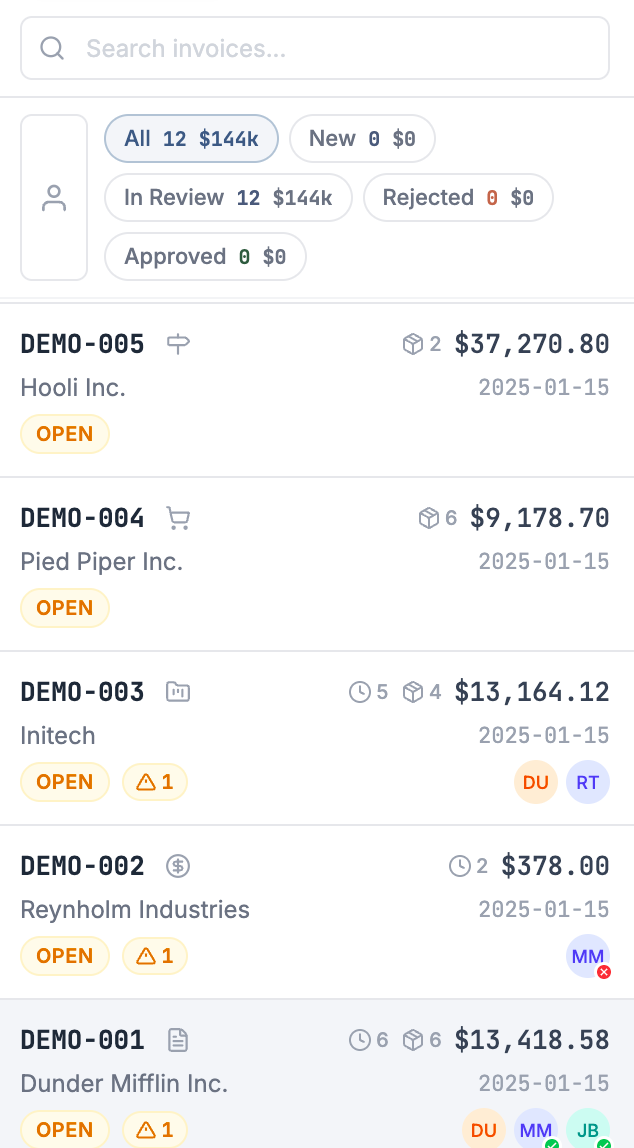
Filter the review inbox by status
Filter tabs sit below the search bar. Select a tab to narrow the list; each tab shows a count in a monospaced font, and the active tab is highlighted with an accent background.
The tabs, in order, are:
- all — every open invoice
- unread — invoices you haven’t opened yet
- approved — invoices an approver has cleared
- rejected — invoices sent back
- new — invoices freshly pulled from ConnectWise
To see only invoices you’re assigned to, turn on Show only my invoices — the user icon to the left of the filter tabs. When active, it takes on an accent background.
Search by invoice number or company
In the Search invoices field, enter an invoice number or company name. The search strips leading # characters, so INV123 and #INV123 return the same result — type whichever you have on hand.
Read one invoice row
Every row packs the full state of an invoice onto three lines. Read it left to right, top to bottom.
Top line: number, type, content, amount
The invoice number leads in a monospaced font. When the invoice is unread, the number is bold and a small blue dot sits to its left.
Next to the number, a type glyph tells you what kind of invoice it is. Point at the glyph to see the type label in a tooltip.
| Invoice type | Glyph | Tooltip |
|---|---|---|
| Standard | File | Standard |
| Fixed Fee | Dollar in circle | Fixed Fee |
| Project | Folder | Project |
| Phase | Milestone | Phase |
| Sales Order | Cart | Sales Order |
| Agreement | Handshake | Agreement |
| Credit Memo | Receipt | Credit Memo |
| Down Payment | Banknote (up) | Down Payment |
| Progress | Percent | Progress |
| Miscellaneous | Shapes | Miscellaneous |
After the glyph, a divider separates a set of content counts — but only when a count is above zero:
- A clock icon with the number of time entries
- A package icon with the number of products
- A receipt icon with the number of expenses
The amount closes the line on the right, in monospaced and right-aligned text (for example, $1,250.00).
Middle line: company and date
The middle line shows the company name and the invoice date in YYYY-MM-DD format.
Bottom line: status, flags, reviewers
The bottom line carries the status pill — an uppercase, rounded label whose color maps to where the invoice stands:
| Status | Pill color |
|---|---|
| New | Blue |
| Approved | Green |
| Rejected | Red |
| Closed / Closed - Emailed | Gray |
| In Review / 1st Review / 2nd Review | Amber |
Next to the pill, the flag badge summarizes rule results. A green check means zero open flags. A triangle with a count means there are flags to look at — red when any are errors, amber otherwise. Select a row to open the flags panel and work through them.
A stack of reviewer avatars closes the line on the right. When a reviewer has approved or rejected, a small status badge overlays their avatar so you can see decisions at a glance. Better Invoice seeds these reviewers automatically from the invoice’s existing ConnectWise Invoice Routing list — see reviewers and approvals for how to add or remove them.
Open the invoice in ConnectWise
Select a row, and a ConnectWise logo appears on it. Select the logo to open the same invoice in ConnectWise Manage in a new tab — useful when you need to edit billing detail that lives in CW.
Watch the sweep indicator
When Better Invoice is pulling open invoices from CW Manage, the inbox shows a spinner with Fetching invoices and Pulling open invoices from ConnectWise…. Wait for it to finish; the list fills in as invoices arrive. After that, flags are re-evaluated from stored data, so the badges you see reflect the latest rule run.
Where to go next
- Understanding flags — what each badge color and count means, and how to dismiss a flag
- Reviewers and approvals — assign reviewers and approve or reject an invoice
- Review rules reference — every rule, its severity, and its default settings
- Configure review rules — turn rules on or off and tune their thresholds