Invoice approval in Better Invoice is the sign-off step that records who reviewed an invoice and writes the result back to ConnectWise PSA as a billing status. Each invoice carries a reviewer list and a set of approval actions. When the final reviewer approves, the invoice is finalized; when someone rejects it, the invoice moves to a rejected billing status.
Better Invoice review is a modern alternative to ConnectWise’s native Invoice Routing — the same idea of routing an invoice to the right managers before it goes out, but with flags, comments, and share links built in.
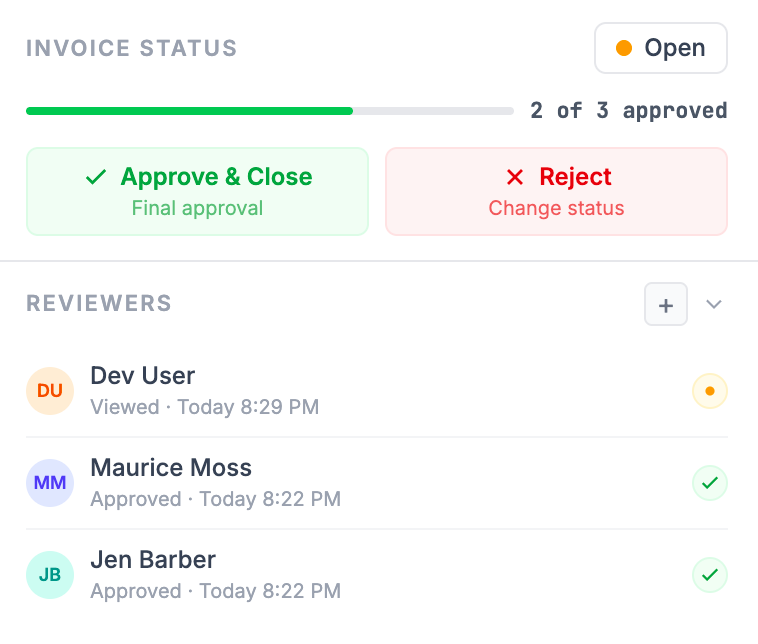
How reviewers seed from ConnectWise Invoice Routing
The first time Better Invoice syncs an invoice, it reads that invoice’s ConnectWise Manage Invoice Routing list and seeds the matching members as reviewers. Each seeded reviewer starts with a Waiting for review status.
This is a one-shot import. Once an invoice’s reviewers are seeded, Better Invoice becomes the source of truth — your changes win. If you remove a reviewer that came from CW Manage, a later sync will not add them back.
This lets you adopt the routing sequences you already maintain in ConnectWise without rebuilding them. From there, manage reviewers in Better Invoice rather than the Routing tab. For background on routing as an approval workflow, see the ConnectWise invoice approval workflow.
Add or remove a reviewer
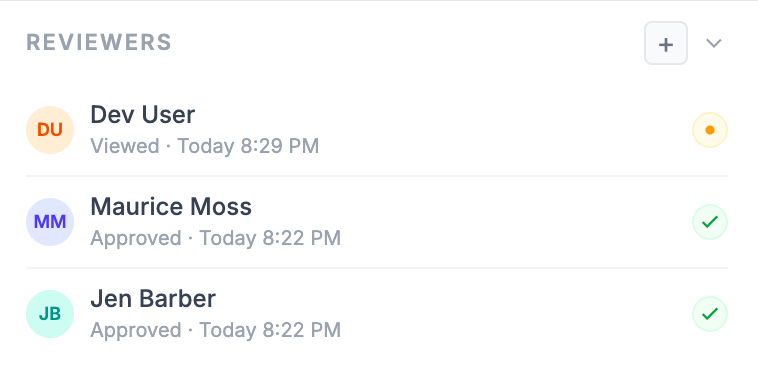
The reviewer list sits under Reviewers in the invoice detail pane. Each reviewer shows an avatar, their name, and a status detail: Approved · {time}, Rejected · {time}, Viewed · {time}, or Waiting for review for a reviewer who has not acted yet. Times read as “Today 14:32”, “Yesterday”, or “Mon DD”.
To add a reviewer:
- In the invoice detail pane, find the Reviewers list.
- Next to the Reviewers heading, select +.
- In the member search, select the person to add.
The list excludes members who are already assigned. If no reviewers are assigned yet, the list reads No reviewers assigned.
To remove a reviewer, point at their row and select the trash icon. Removing a reviewer is permanent for that invoice — a CW Manage routing sync will not re-add them.
Approval actions and what they mean
The approval actions sit in a two-button grid below the reviewer list. The exact labels and helper text adapt to your role on the invoice and to whether your approval is the final one.
Approve and Approve & Close
The approval button reads either Approve or Approve & Close. The helper text under it tells you what your sign-off will do:
- Your review — a standard approval that records your sign-off.
- Final approval — your approval is the last one needed and will finalize the invoice.
- Add yourself & approve — you are not yet on the reviewer list; approving adds you and records your decision in one step.
- No ConnectWise member linked — your Better Invoice account is not linked to a CW Manage member, so the button is disabled. Link your member to approve.
- Already approved — you have already approved this invoice.
When the button reads Approve & Close, your approval both finalizes the review and writes the closing billing status back to ConnectWise.
Undo Approval
After you approve, your approval button is replaced by Undo Approval, with the helper text Back to pending. Select it to retract your sign-off and return your status to Waiting for review.
Reject
The Reject button records a rejection decision. Its helper text reads Change status for signed-in reviewers, or Your decision for guest reviewers using a share link. Rejecting writes the rejected billing status back to ConnectWise.
Multi-reviewer sign-off and final approval
An invoice can carry several reviewers. Each one approves or rejects independently, and the reviewer list shows where everyone stands at a glance — green badges for approved, red for rejected, and Waiting for review for anyone who hasn’t acted.
The invoice is not finalized until the last required reviewer approves. That final approval is the one whose button reads Approve & Close with Final approval helper text.
Until then, the invoice stays in an in-review billing status.
Approve with open flags
Better Invoice runs review rules that raise flags — for example, a below-cost product line or a missing tax code — and some of those flags are blocking (errors and warnings that haven’t been marked OK).
If your approval would finalize the invoice while blocking flags are still open, Better Invoice shows an Approve with open flags? confirmation before it proceeds. The dialog summarizes what’s still open — for example, “This invoice has 2 errors and 1 warning still open. Approving now finalizes it.” — and lists each blocking flag with its severity.
You have two choices:
- Select Cancel to go back and resolve the flags first. Mark a flag Mark as OK to clear it, or fix the underlying issue in ConnectWise.
- Select Approve anyway to finalize despite the open flags.
This is a soft gate — it never blocks you outright, it just makes sure a final sign-off over open errors is deliberate. See understanding flags for how severities and dismissals work.
How approval maps to ConnectWise billing status
Every approval action writes back to the invoice’s billing status in ConnectWise Manage, so your PSA stays the system of record:
- Approving moves the invoice toward its in-review or closed billing status, depending on whether it was the final approval.
- A final Approve & Close writes the closing billing status.
- Rejecting writes the rejected billing status.
You can also set the billing status directly. In the invoice detail pane, the Invoice Status dropdown lists every billing status from your ConnectWise instance, each tagged Closed or Sent where it applies. Choosing a status here writes that change straight back to CW Manage.
Every approval, rejection, status change, and reviewer edit is recorded — see the activity and audit trail for the full history. New to review? Start with what invoice review is and the review inbox. For a practical framework, read how MSPs review invoices before sending.